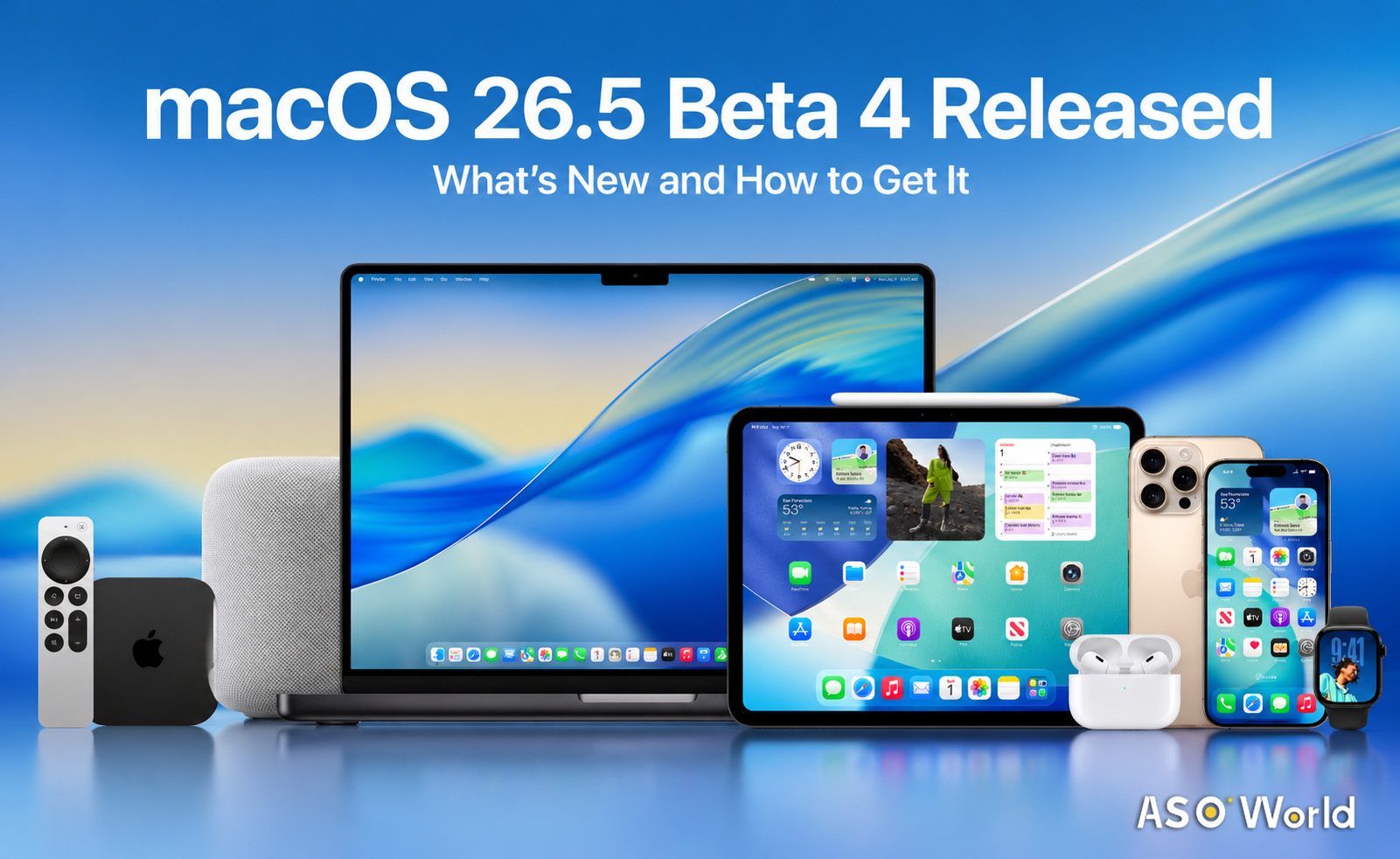

Apple has released macOS 26.5 Beta 4, an update that focuses on bug fixes and system stability improvements ahead of the final release. While this version does not introduce major new features, it plays an important role in refining macOS 26.5, setting the stage for upcoming updates. In this guide, we’ll walk you through how to download and install the macOS beta, explain the key differences between the Developer and Public Beta programs, and highlight the key features of this release. For related iOS updates, see What's New in iOS 26.5 Beta 4: Apple Maps Ads, New Developer Subscriptions, and RCS Encryption
macOS 26.5 Beta 4: Key Features
macOS 26.5 Beta 4, which was released on April 27, 2026, brings a quieter update compared to earlier macOS releases. This update is focused mainly on improving system stability and performance. While there are no significant new features in this release, it ensures a more polished experience ahead of the official launch.
Focus on Stability and Bug Fixes
The main objective of macOS 26.5 Beta 4 is to address bugs and improve system performance. The update appears to be a maintenance release, with minimal user-facing changes.
Key Cross-Platform Features
Though macOS 26.5 Beta 4 doesn't include groundbreaking changes, there are some notable cross-platform features affecting all Apple devices:
- End-to-End Encryption for RCS: Enhances the security of messaging services across Apple devices.
- Live Activities for Third-Party Accessories: Expands support for third-party accessories in Europe, allowing users to interact with these devices in real time.
- Suggested Places in Apple Maps: Offers personalized location suggestions based on user preferences and behavior.
These features are part of a broader push across Apple’s ecosystem, but they enhance the overall macOS experience.
macOS Public Beta vs. Developer Beta
Understanding the difference between the Public Beta and Developer Beta is key to selecting the right version for your needs.
Developer Beta
- Available to registered developers (including those with free developer accounts).
- More frequent updates, sometimes with features not yet available in the Public Beta.
- Riskier to install, as the software can be unstable and prone to bugs.
Public Beta
- Available to anyone with a valid Apple ID.
- Released after the Developer Beta has been tested, making it more stable.
- Primarily intended for users who want to test the system for bugs and provide feedback to Apple.
What This Means for App Developers and Marketers
Even as a minor release, macOS 26.5 Beta 4 carries important signals for the Apple ecosystem:
- System Stability Matters: Apps that rely on background processes, notifications, or cross-device interactions should be tested against this beta to ensure consistent performance. Developers should anticipate subtle changes in system behavior that could affect app reliability. For strategies on app growth and optimization, see Keyword Installs vs. Guaranteed Ranking: How to Choose the Right ASO Service for Your Growth Stage
- Security and Messaging Compliance: RCS encryption changes may affect apps integrating messaging, notifications, or cross-platform communication. Developers need to monitor how Apple’s privacy policies and security requirements could influence user experience.
- Cross-Device Features Impact App Strategy: Support for third-party accessories and Suggested Places indicates Apple’s growing emphasis on ecosystem integration. Developers targeting EU users or location-based services may need to adapt their apps to align with Apple’s evolving policies.
- Platform Monetization Trends: Suggested Places and other cross-platform initiatives show Apple’s careful balancing act between monetization and user experience. Marketers and developers should consider these updates when planning promotion, discoverability, and in-app revenue strategies.
Developer Takeaways
- Test apps on macOS 26.5 Beta 4 to ensure stability and compatibility, particularly if they rely on cross-device features or notifications.
- Review any location-based, accessory-integrated, or messaging-dependent app workflows in light of Apple’s privacy and monetization policies. For a deeper dive into App Store search ranking mechanisms, see App Store Search Algorithm 2026.
- Use these early betas to anticipate policy trends that could affect App Store approval, subscription models, and ecosystem integration.
Comments
macOS 26.5 Beta 4 is a refinement update focused on bug fixes and performance improvements, making it a reliable choice for developers and tech enthusiasts who want to test macOS stability ahead of the official release. While it may not offer many new features, this update plays a crucial role in ensuring macOS remains robust. The Public Beta offers a safer experience for those who are not developers but still want to try new features early.
FAQs
Do I need the macOS Beta Access Utility?
If you are running macOS Ventura 13.3 or earlier, you will need to download the macOS Beta Access Utility. For macOS Ventura 13.4 or later, this step is not required.
Who can run the macOS beta?
Anyone can run the macOS beta by registering for either the Developer Beta or Public Beta program. Both programs are open to users with a valid Apple ID.
Is the macOS beta stable?
Beta software is typically unstable and may cause system issues. It is recommended to install the beta on a secondary device or a separate partition rather than your primary Mac.
Can I upgrade from macOS beta to the final version?
Yes, you can upgrade directly from the beta to the final version of macOS when it is released, without needing to reinstall or wipe your device.
How do I downgrade from macOS beta?
To downgrade, back up your data, erase your drive, and reinstall the latest stable version of macOS. You can then restore your files from your backup using Migration Assistant.

 Follow Us on Facebook